How to customize Lists on the Customer page

How to customize Lists on the Customer page


How to customize Lists on the Customer page

The Customer page has several drop down fields that can be setup with custom details including customizing Appointment Types, Delivery Ranges, Lead Sources, etc.

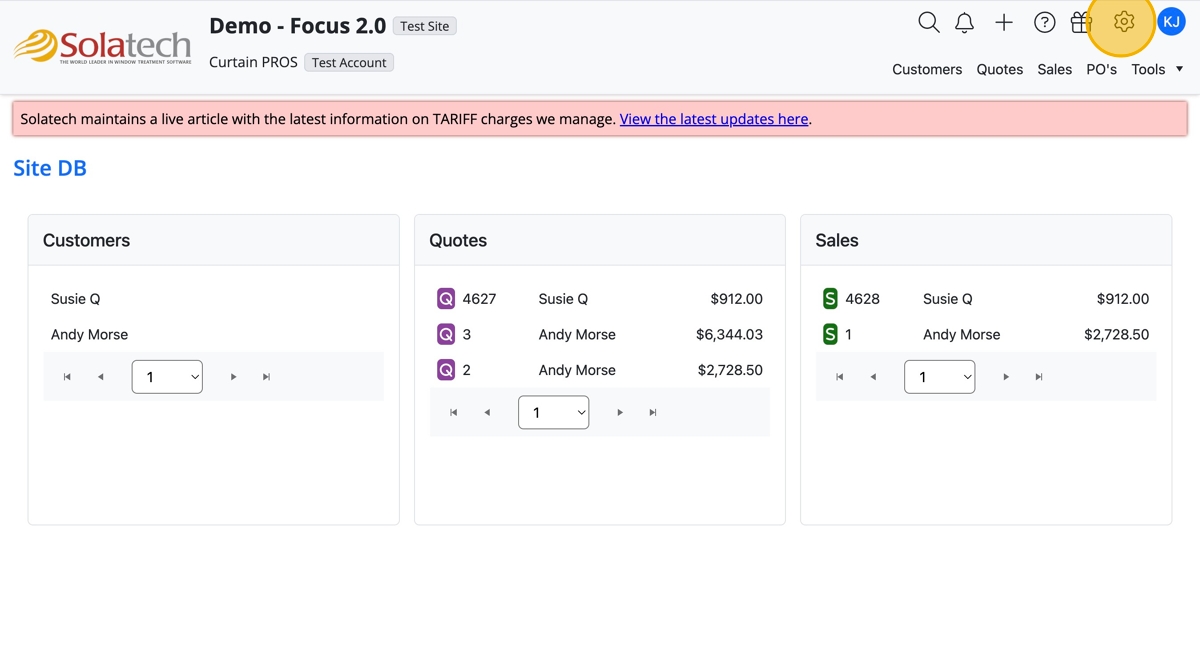
  1. Click the settings gear icon

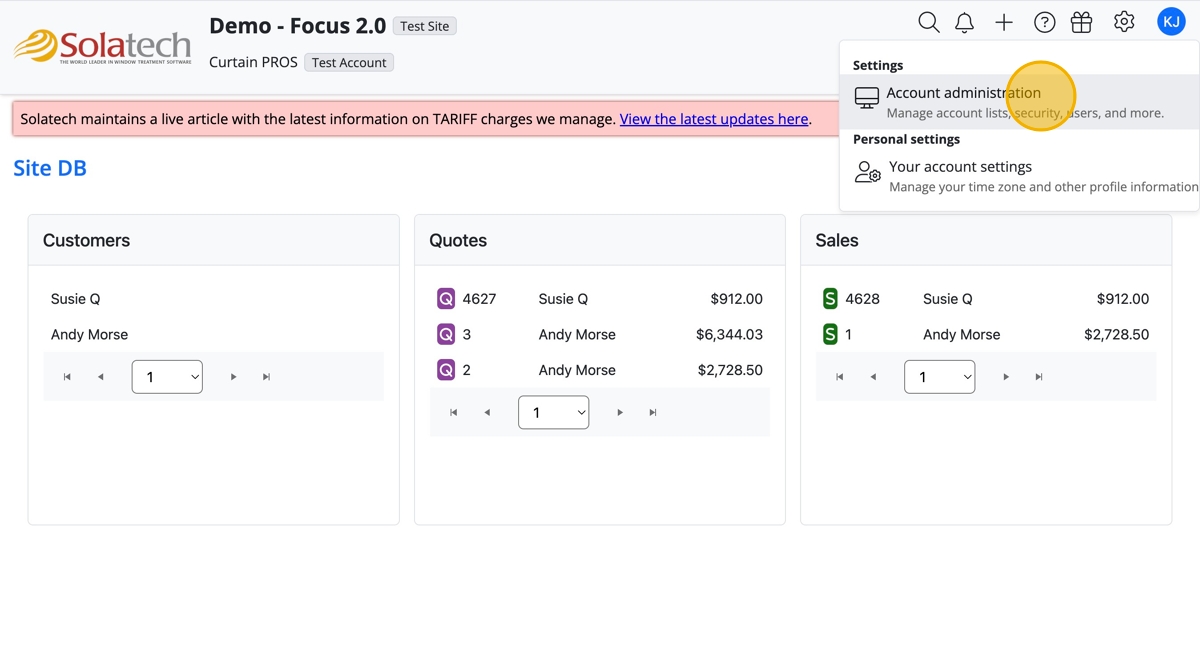
  1. Click "Account Administration"

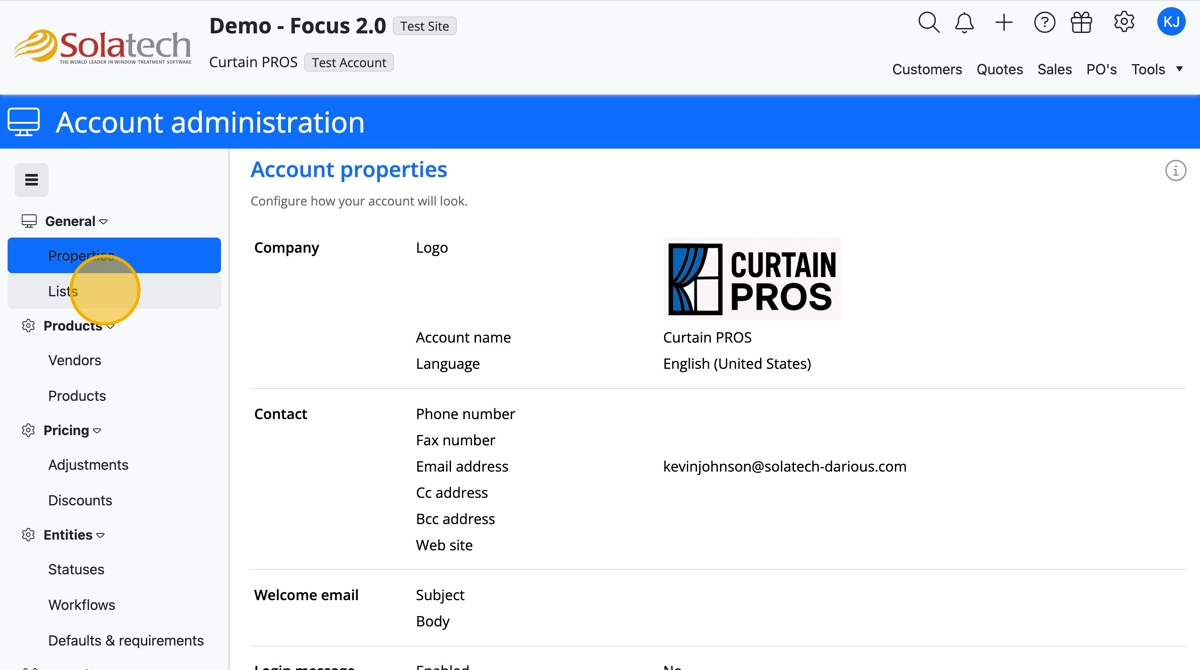
  1. Click "Lists"

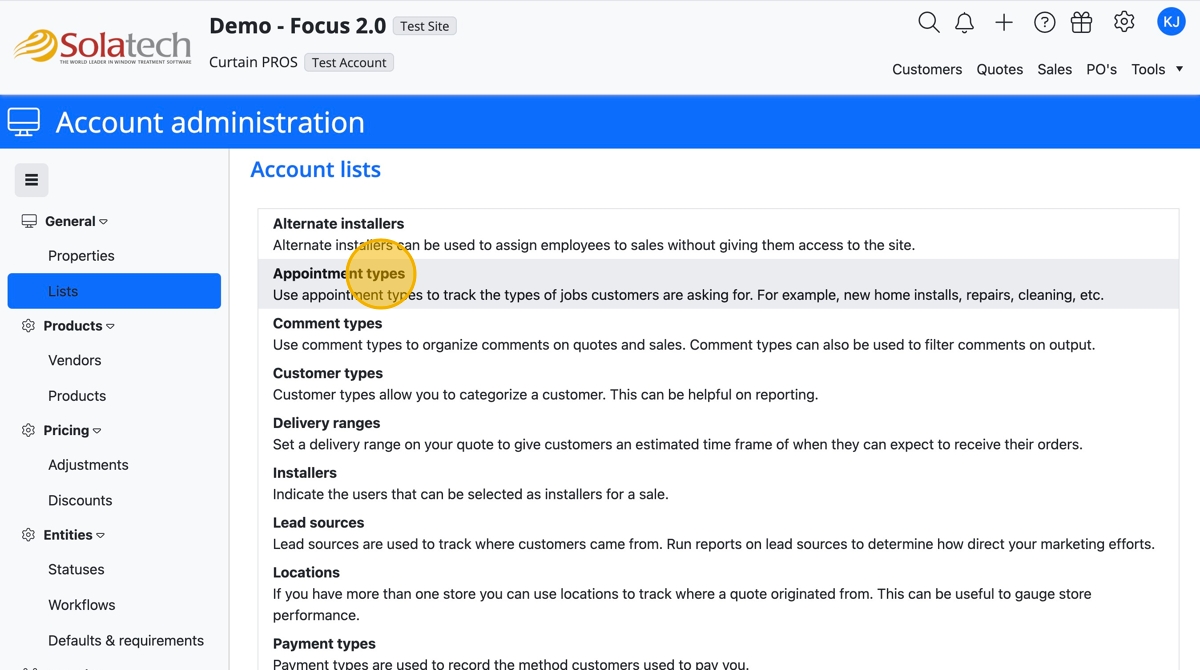
  1. Under Account lists, select the list to customize, i.e. click "Appointment types"
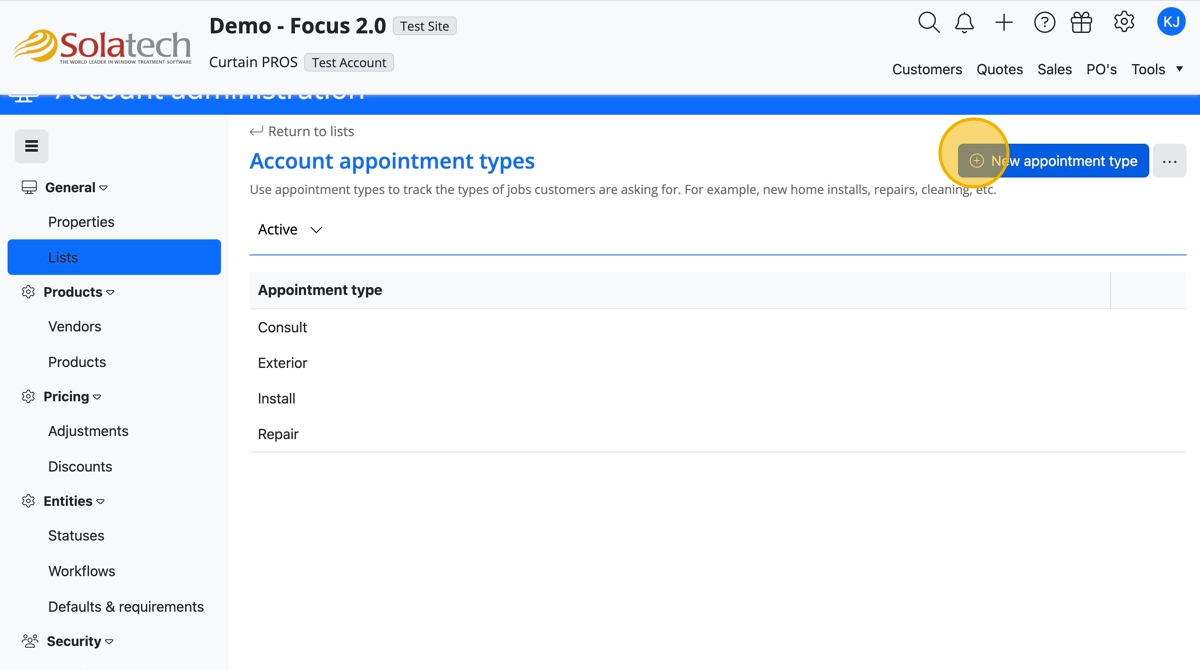
  1. Click the "+ New appointmen type" button
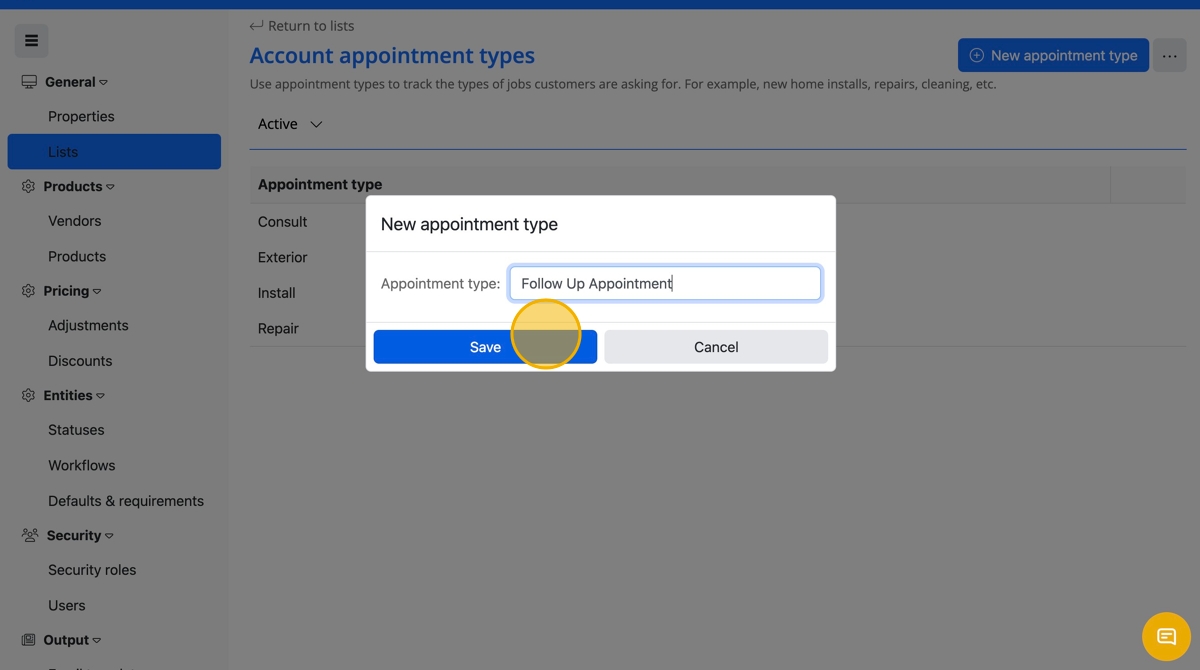
  1. Click the "Appointment type" field to type in an option
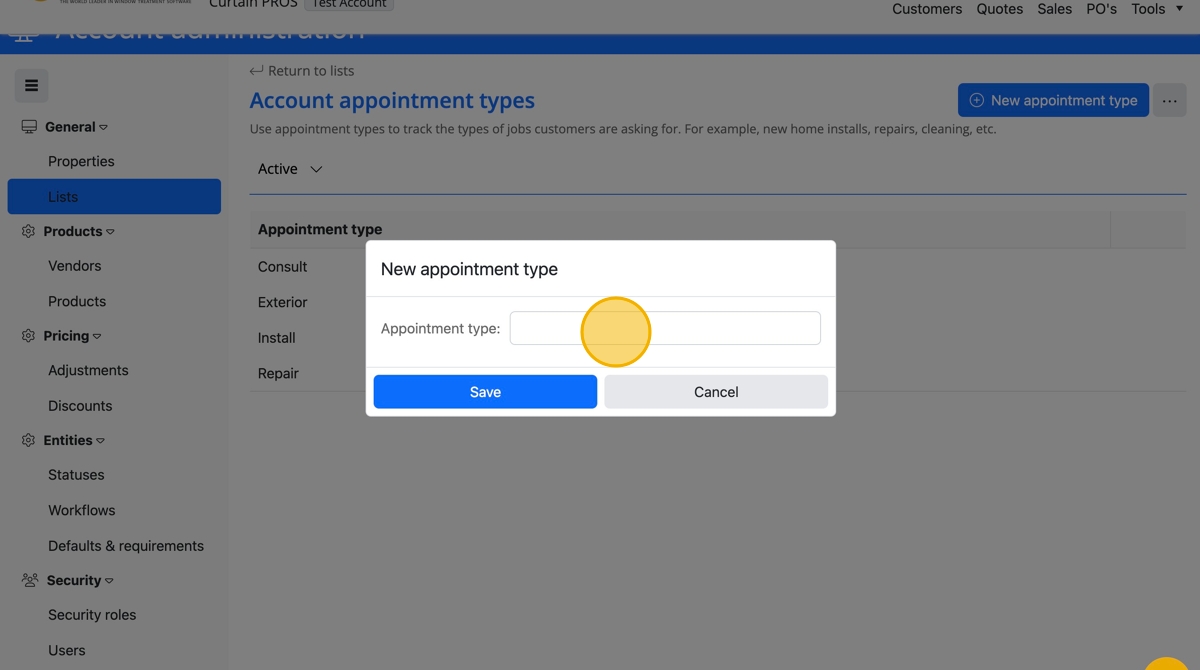
  1. Click the "Save" button

  1. Click "Return to lists" to go back to the main Account lists page
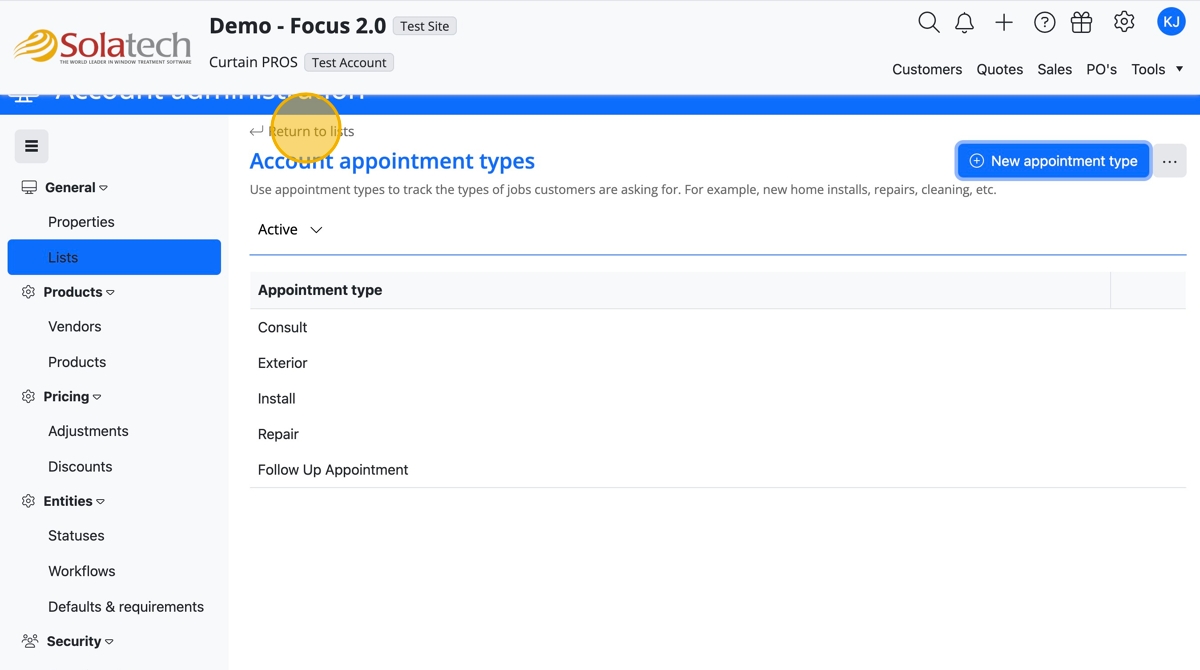
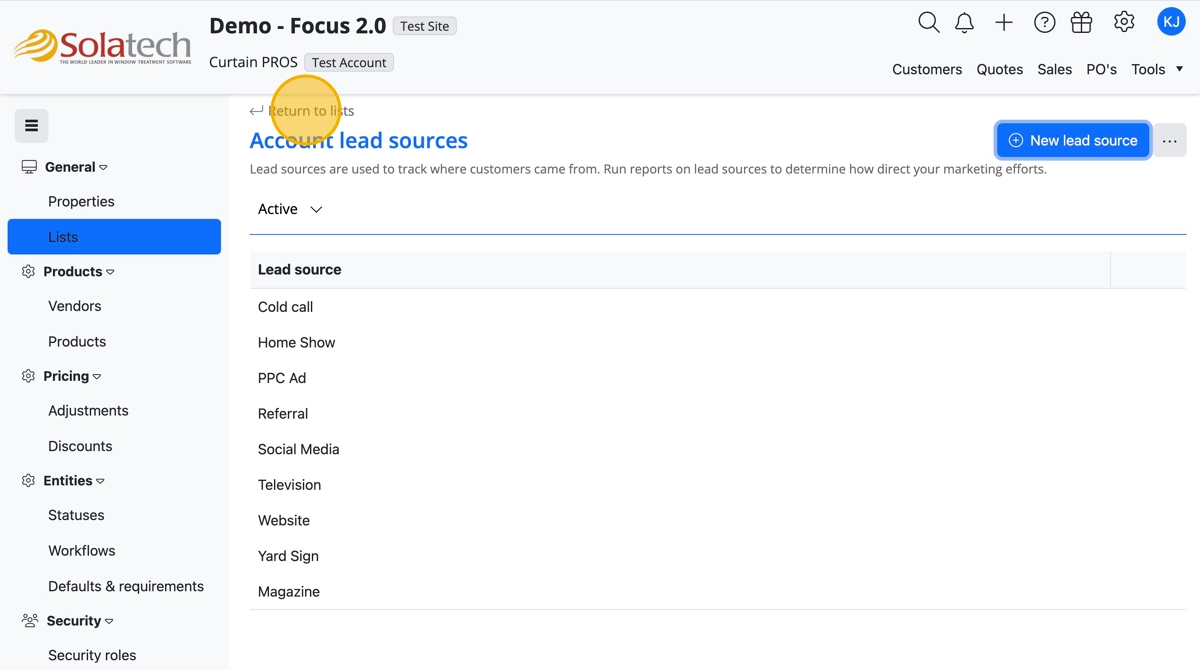
  1. Click the next section to customize, i.e. "Lead Sources"
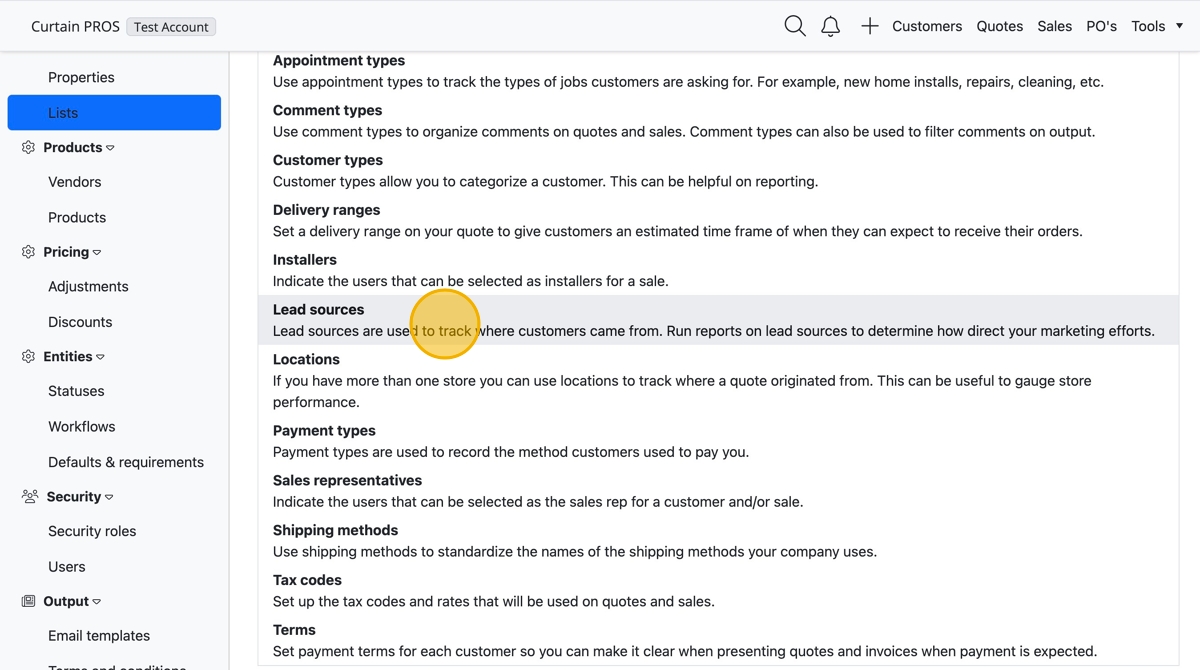
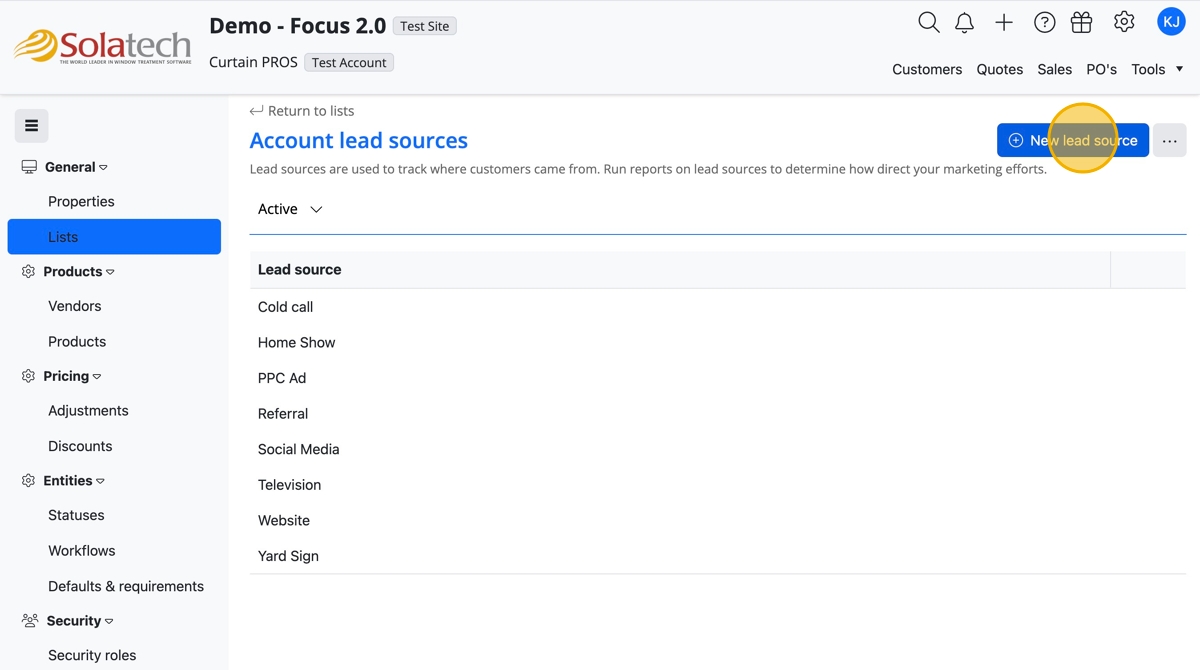
  1. Click the "+ New lead source" button

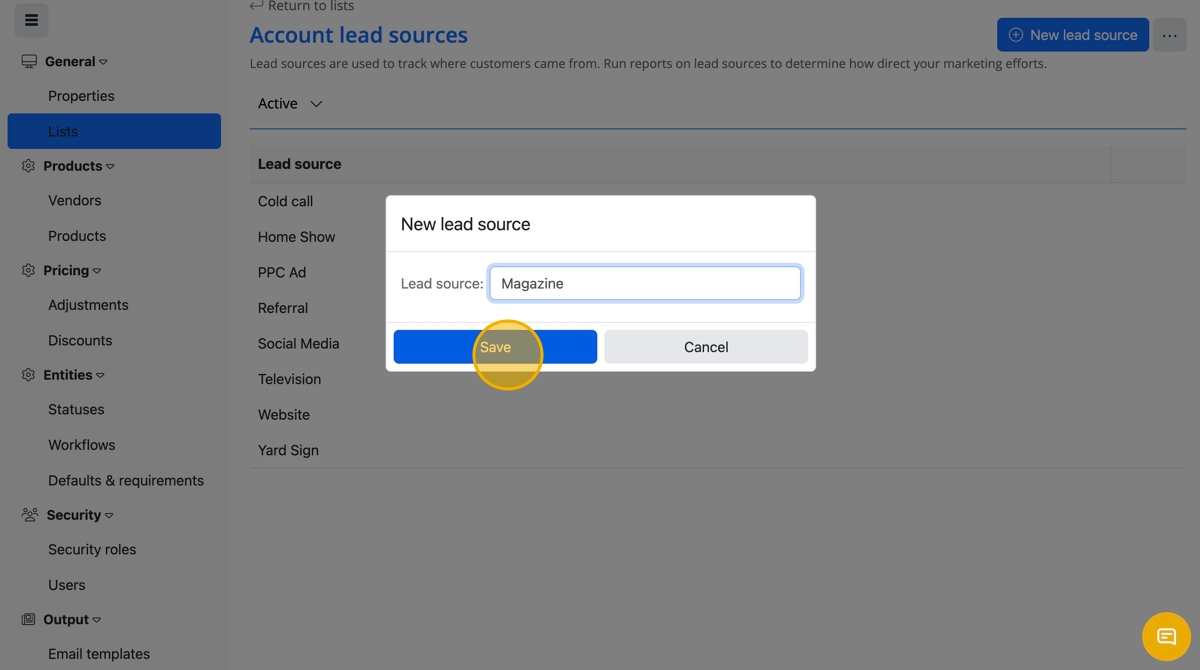
  1. Click the "Lead source" field to add an option
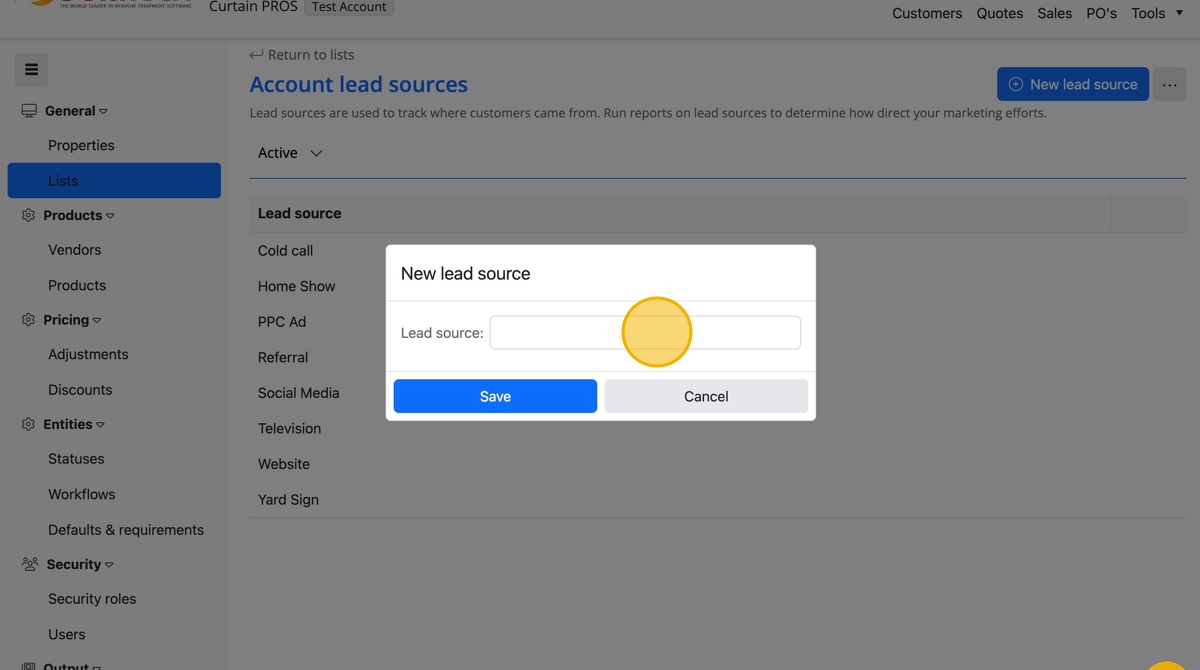
  1. Click the "Save" button

  1. Click "Return to lists" to continue customizing or finish
    • Related Articles

    • How to customize Lists on Quote page

      How to customize Lists on Quote page Click the settings gear icon Click "Account Administration" Click "Lists" Click "Comment Types" to adjust the names of the note fields in different parts of the system To add an option, click the "New comment ...
    • How to customize Lists under General tab in Account Administration Settings

      How to customize Lists under General tab in Account Administration Settings This guide provides a comprehensive walkthrough for customizing various lists within the Account Administration Settings, enhancing your ability to tailor the system to your ...
    • How to customize reports

      Summary Solatech Focus and DOS users can create custom versions of reports available in the Report Center. This knowledge base explains the process of creating a custom version of a stock report. Instructions From the Report center, select a report ...
    • Solatech Focus Home Page

      Summary The home page is your starting point for Solatech Focus.  This article will describe how to use the home page to navigate your site efficiently. Navigational Links The links found across the top of the Home Page will allow you to quickly add ...
    • General reports are missing the report title, company name and page numbers

      Symptoms When a general report is run, for example the Customer Contact List, the report runs and the data is there however the report title, company name, and page numbers are missing. Cause This can be caused if the printer assigned to the Printer ...