How to create a new quote and email a customer

How to create a new quote and email a customer


Create a New Quote and email a Customer

This guide provides a step-by-step process for creating a new quote for a customer, making it an essential resource for anyone in sales or customer service roles. 


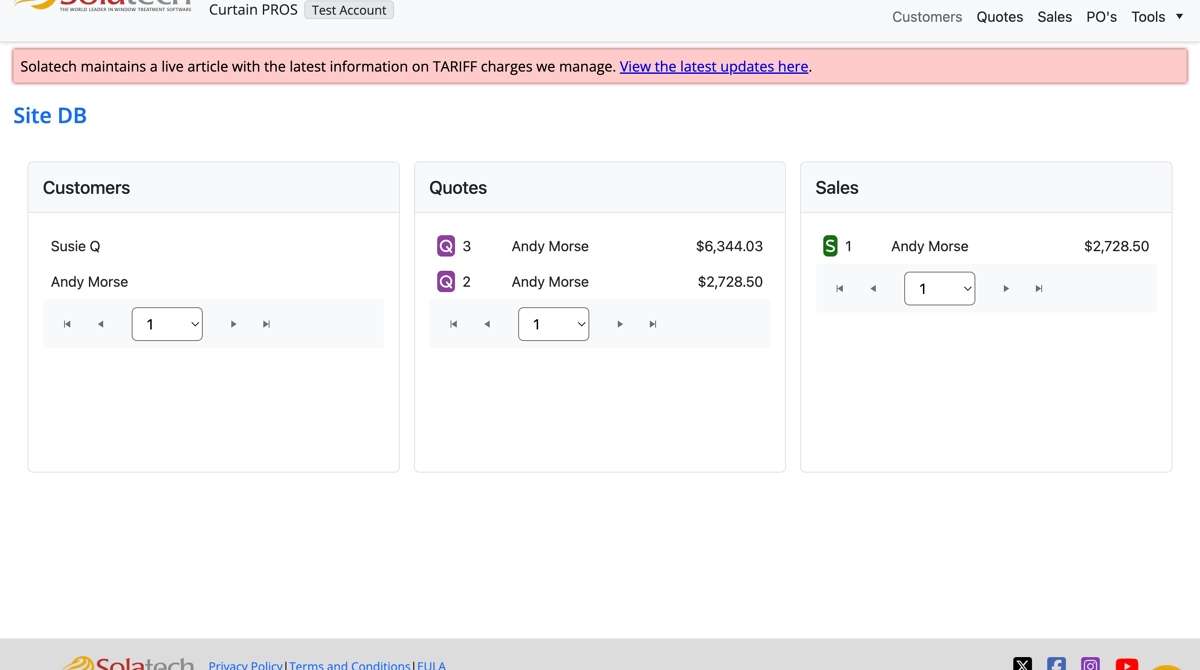
  1. Login to Solatech

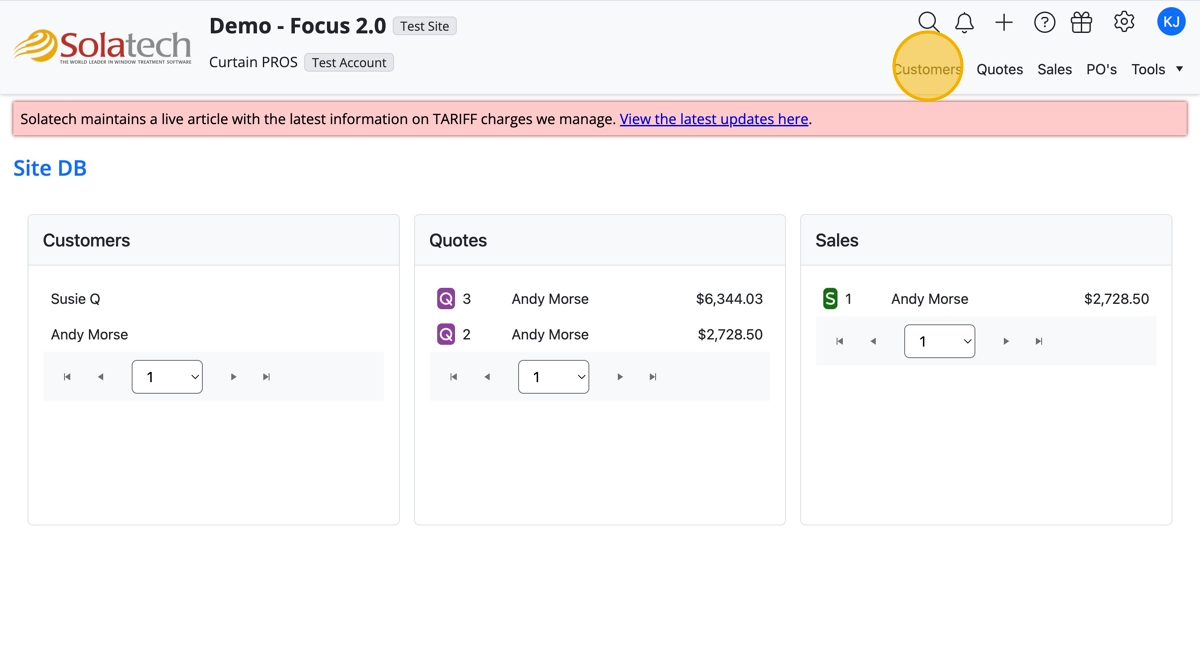
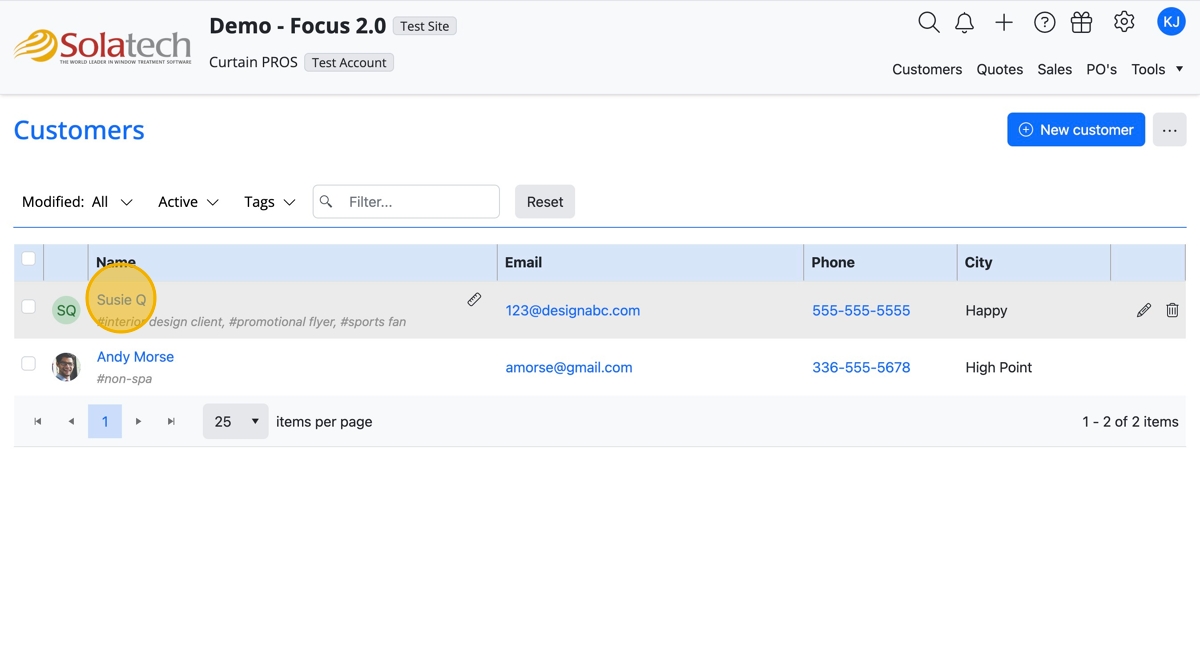
  1. Click "Customers" tab

  1. Navigate to and click the Customer name
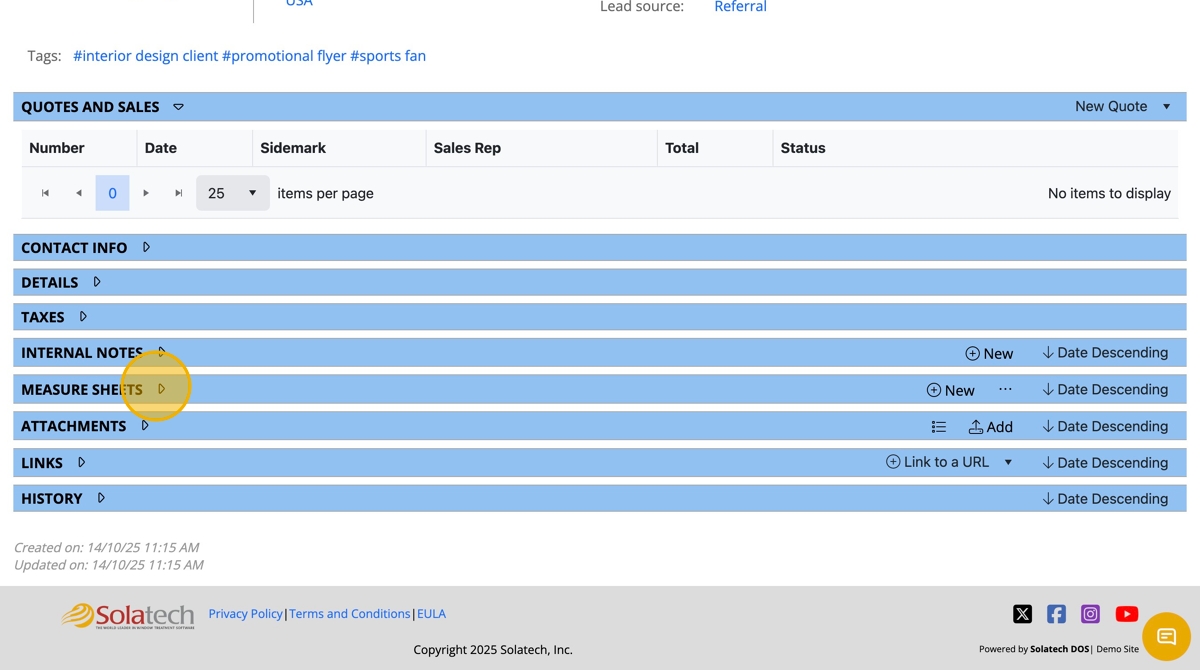
  1. Ensure there is already window measurements in the system by clicking on the "Measure Sheets" banner to verify
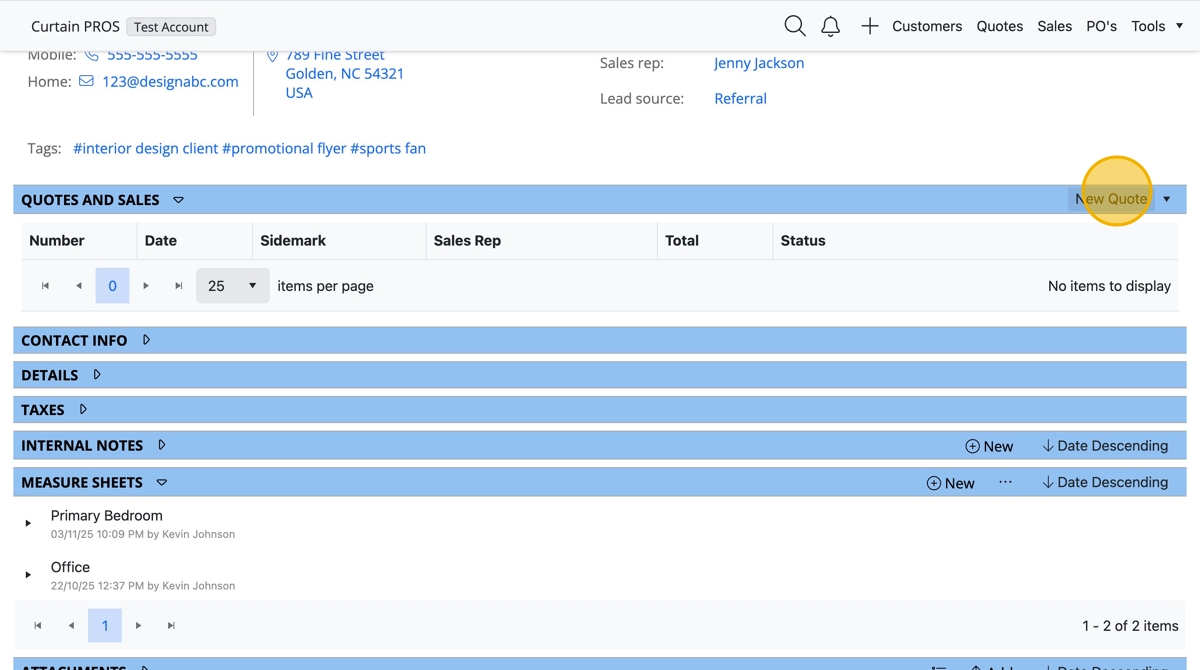
  1. If window measurements are in the system, scroll up to the "Quotes and Sales" banner, then click "New Quote"
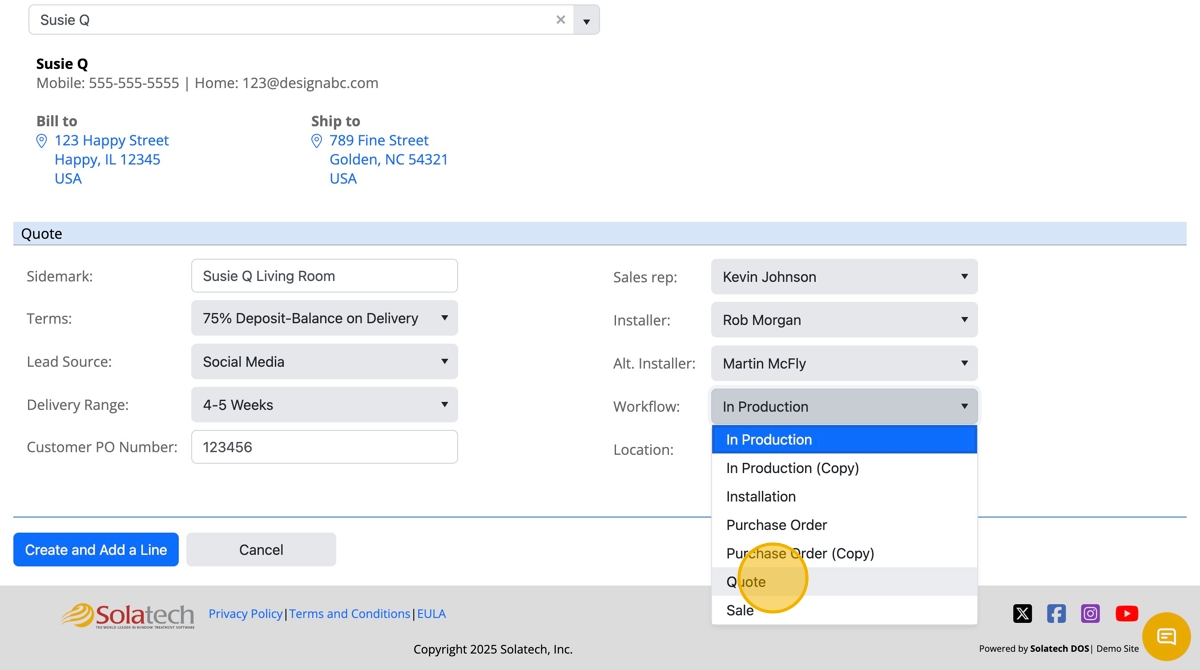
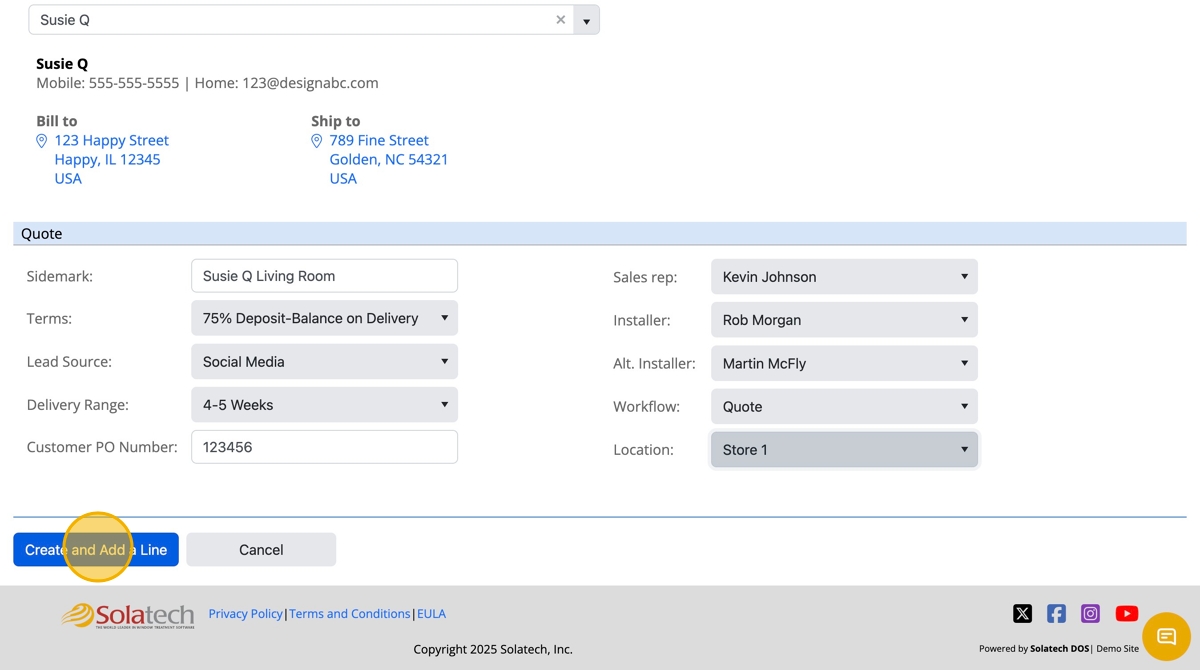
  1. Click "Workflow" dropdown field

  1. Under "Workflow," click "Quote"

  1. Complete all fields before clicking on the  "Create and Add a Line" button
  1. In the new window, complete the "Vendor," "Product," "Style," and "Quantity" fields
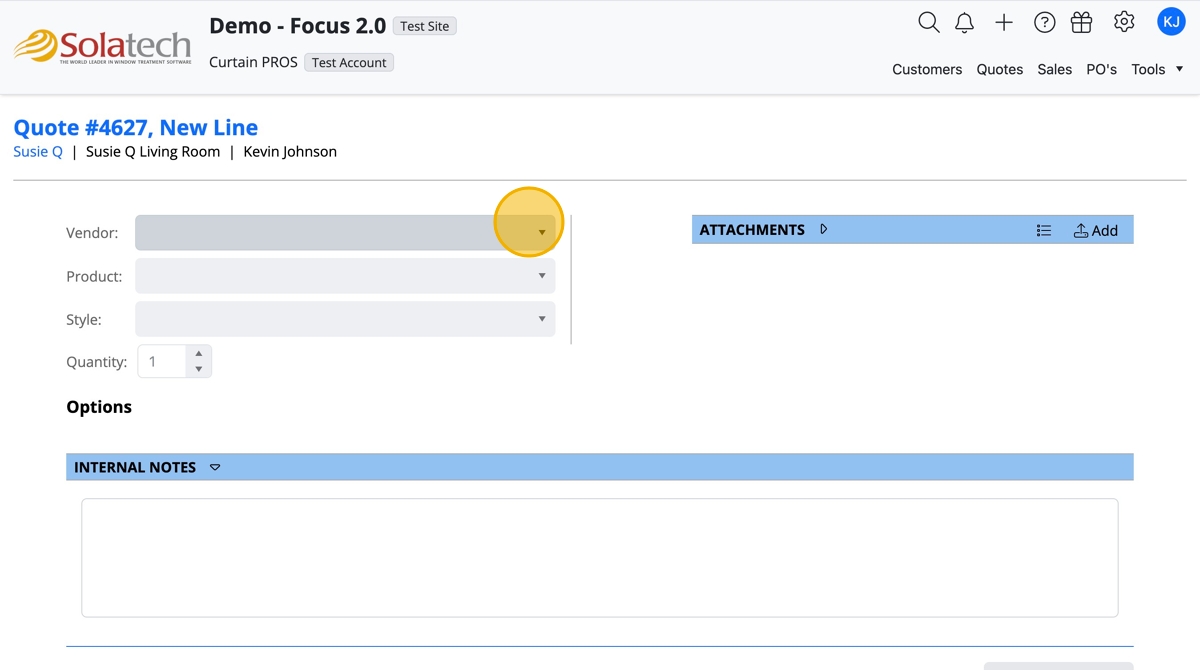
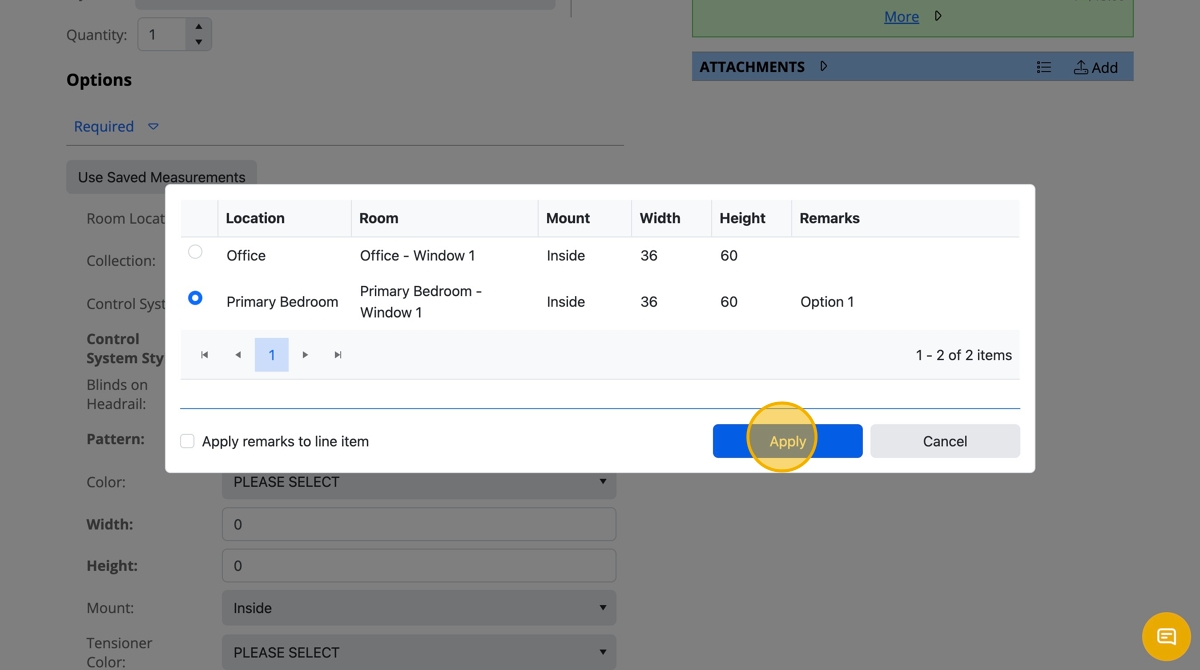
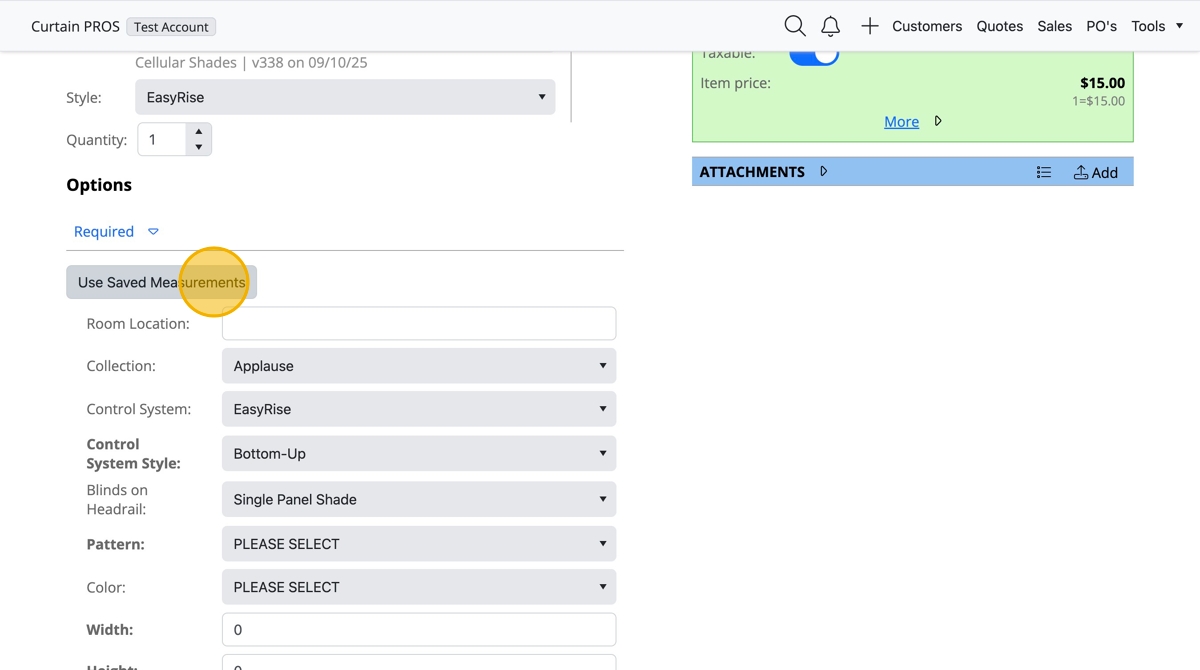
  1. Click "Use Saved Measurements" to populate measurements added into the Customer profile
  1. Click the appropriate measurements by selecting the checkbox
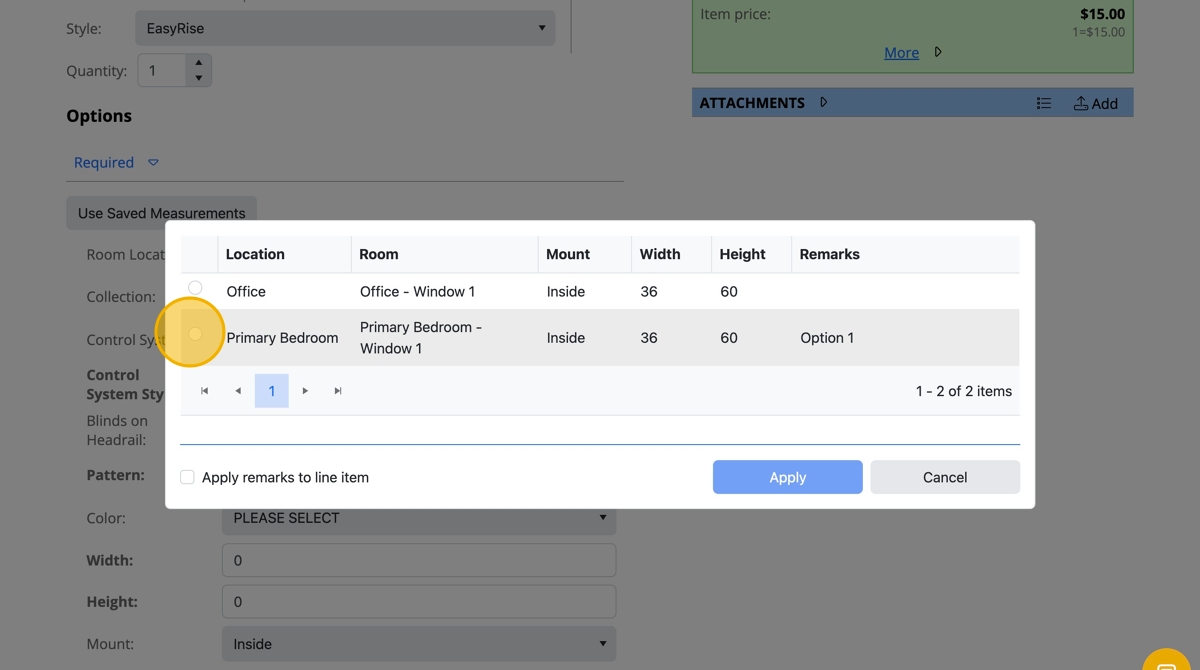
  1. Click the "Apply" button

  1. Complete further product details, by clicking each dropdown field and making a selection
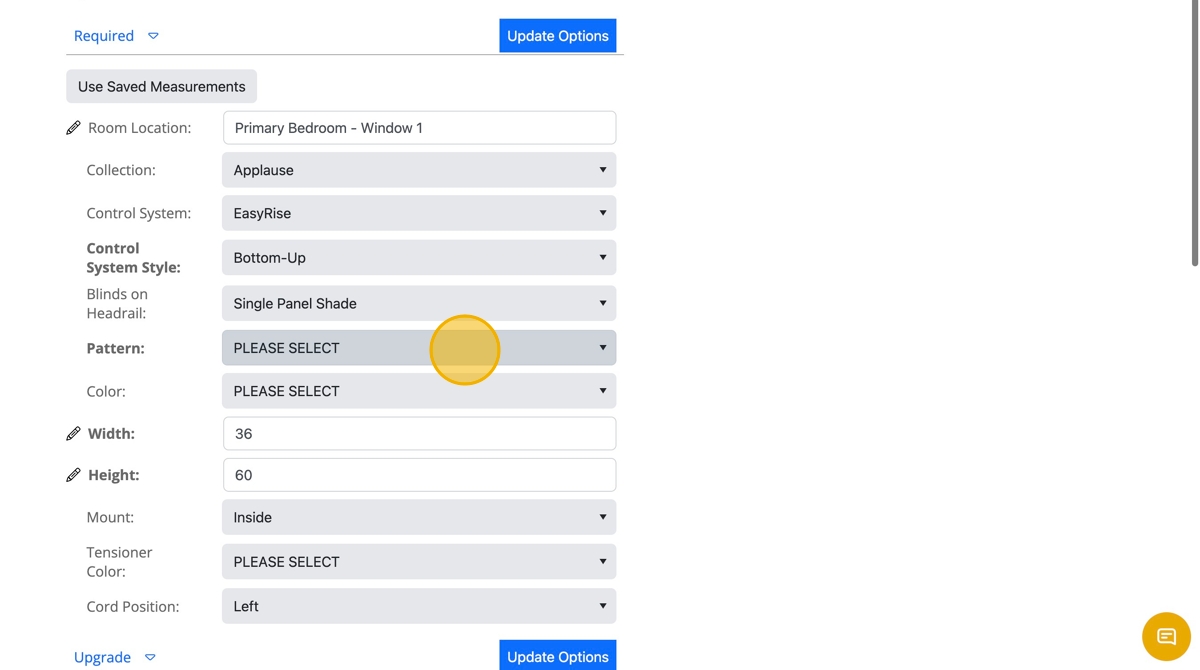
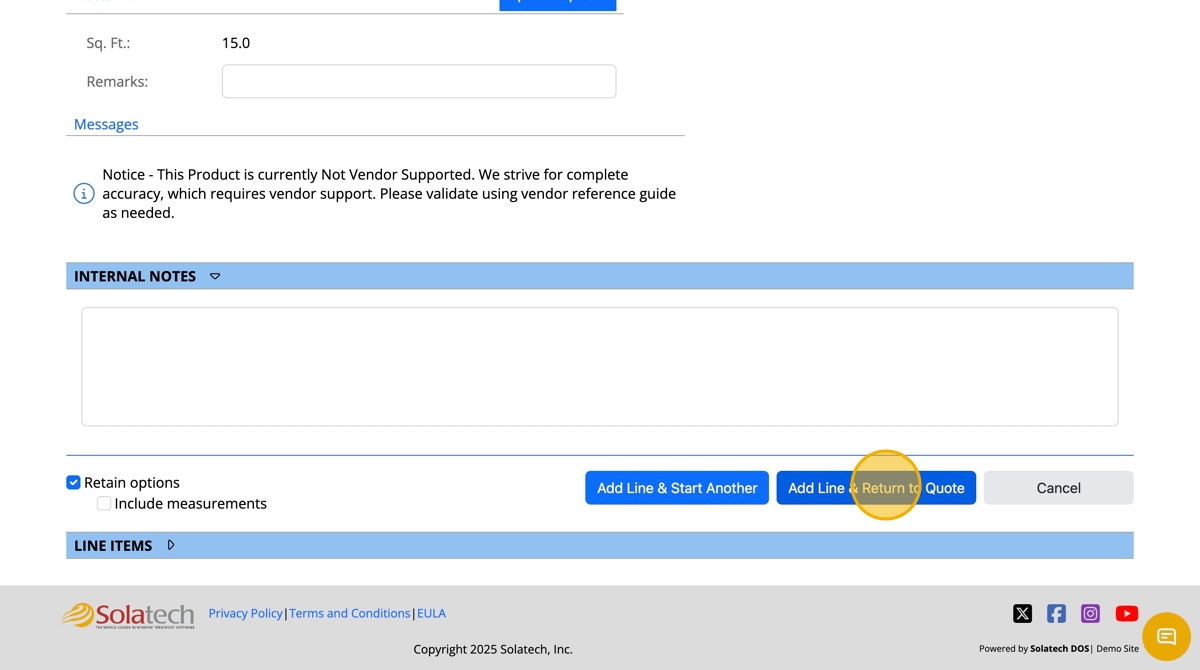
  1. Click "Add Line & Return to Quote" if finished, or "Add Line & Start Another" to build multiple line items on the quote
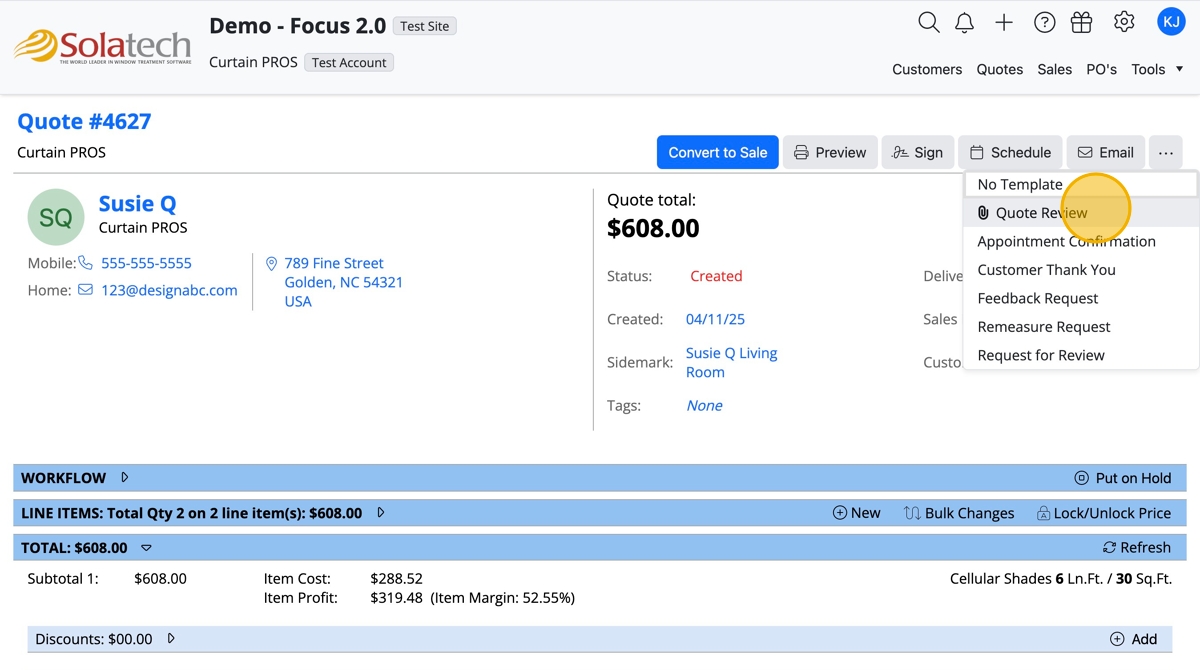
  1. To send a Customer a Quote, click "Email" button

  1. Choose selection from dropdown, i.e. "Quote Review"
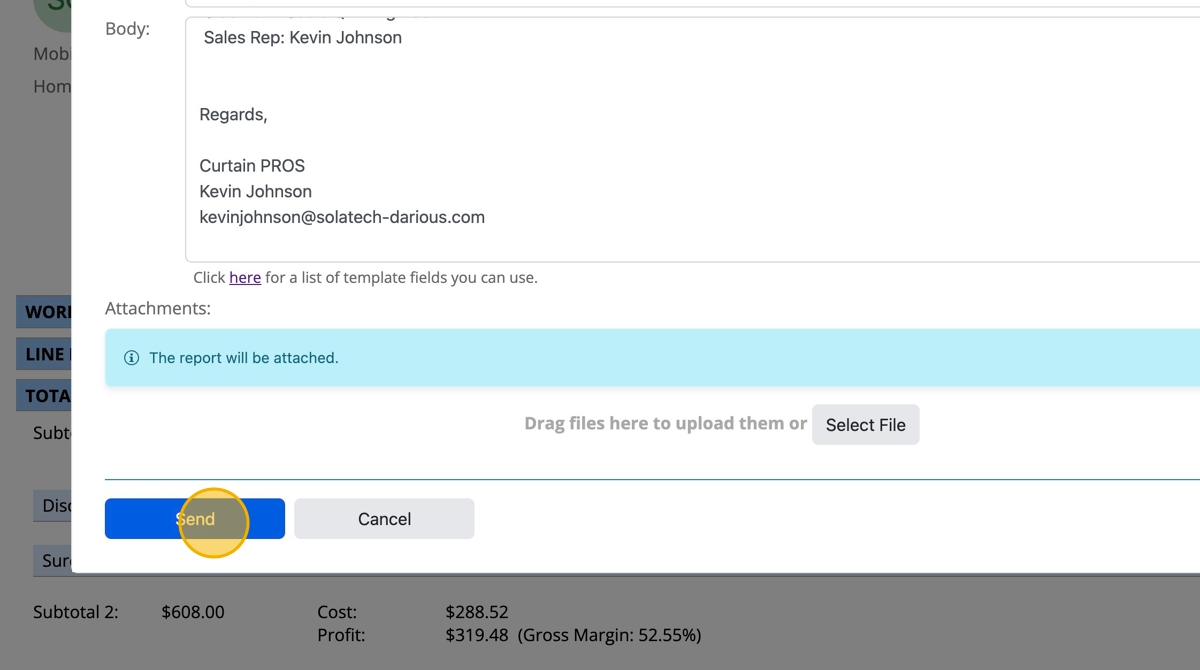
  1. Adjust the email, and click the "Send" button when finished. Tip! You may add an attachment by selecting "Select File" button
  1. You will receive a notification when the email has been submitted

    • Related Articles

    • How to create a new quote and email a customer

      Create a New Quote and email a Customer This guide provides a step-by-step process for creating a new quote for a customer, making it an essential resource for anyone in sales or customer service roles. Login to Solatech Click "Customers" tab ...
    • Creating a Customer

      More Information These navigation and entry instructions may not be the only way to complete the desired task.  For more in-depth explanations, any related articles will follow the instructions as links. Steps From Home tab, click drop-down arrow ...
    • Creating a quote in Solatech Focus

      Summary This article will describe how to create a quote in Solatech Focus, including adding products, discounts and surcharges (shipping, measuring, install, etc.). Instructions From the Home Page, click on the Create a Quote button. (note: Site ...
    • Processing a Quote Through to a Sale: An In Depth Guide to Quote Statuses

      Summary This article reviews the processing flow of a quote, focusing on the processing steps and the effect of those steps on the status. More Information For a detailed description of the processing flow as it moves from quote to sale to order, ...
    • Setting up SMTP email for your Solatech Focus User Account

      Summary Solatech Focus allows users to setup the email address which will be used to send quote to customers. By default, emails sent will come from noreply@Solatech.com. Your Account Administrator will decide to either have all emails sent from one ...